Certificate Manager Configuration
The Certificate Manager service manages TLS certificates in a Shoot cluster using the standard cert-manager CRDs, without the need to install cert-manager yourself.
This page describes how to configure the service in the OSC Dashboard. For details about the extension's functionality, limitations, and example manifests, refer to the Gardener certification manager documentation.
Note
The Certificate Manager is disabled by default. It has to be explicitly enabled for a Shoot cluster.
Configuring Certificate Manager in the OSC Dashboard
On an existing Shoot
- Open the Shoot detail page.
- Scroll to the Cluster Services section.
- Click the cog button next to Certificate Manager.
- Switch the service to Enabled.
- Adjust the configuration in the Edit configuration tab if needed.
- Type the Shoot name into the confirmation field.
- Click Save.
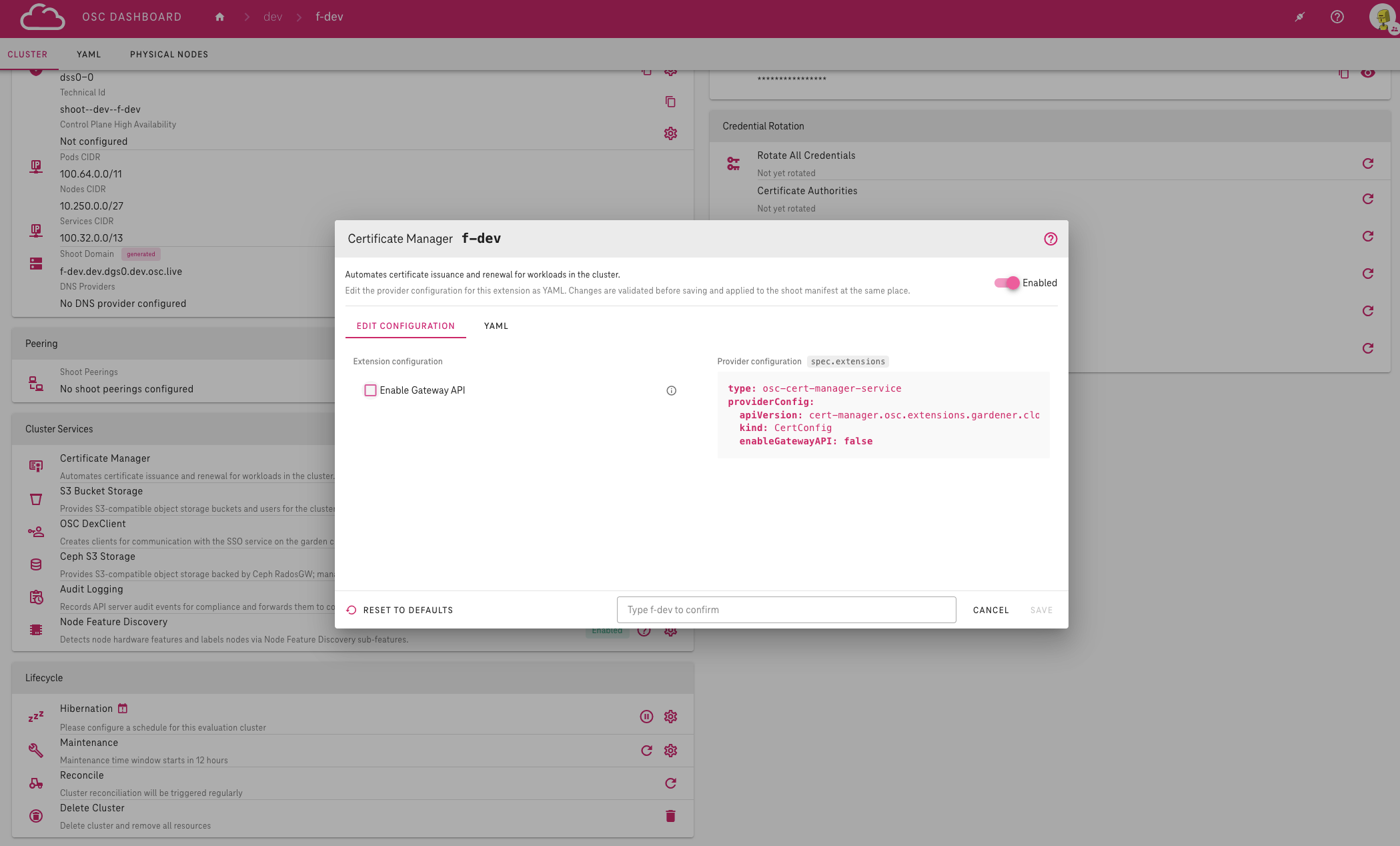
During Shoot creation
- In your project, click Create Cluster to open the new Shoot form.
- Scroll to the Cluster Services section.
- Click the cog button next to Certificate Manager.
- Enable and configure the service.
- Click Save to close the dialog.
- Fill in the remaining fields.
- Click Create.
Configuration options
Enable Gateway API: automates certificate provisioning for Gateway API resources. Disabled by default.
- Hover over the help icon next to the field to see its type, allowed values and an example.
- Review the Provider configuration preview on the right — it shows the resulting manifest entry.
The dialog will alert you if a change impacts the running cluster — please review all warnings before saving.
For the full extension specification and usage examples, see the Gardener certification manager reference.