Change Seed for an existing Shoot (OSC Dashboard)
This guide explains how to change the Seed assigned to an existing Shoot cluster using the OSC dashboard and how to interpret the Seed capacity information now shown in the interface.
Seed Capacity Indicators
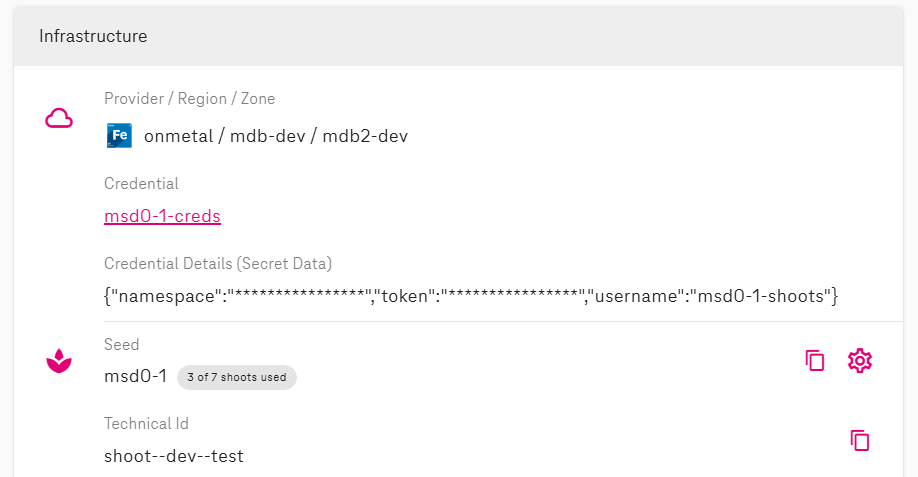
In the Shoot detail view, under the Infrastructure section is a compact Seed capacity indicator next to the current Seed name in the form:
<used> of <limit> shoots used
This reflects how many Shoot slots of allowed Shoot usage are currently consumed for Seed quota scope.
Tooltip Details
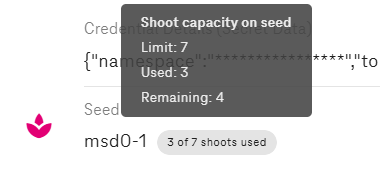
Hovering the indicator displays a tooltip with the structured values:
- Limit: Maximum number of Shoot clusters allowed for this scope.
- Used: Current number of Shoot clusters already created.
- Remaining: Slots still available (
limit - used).
Only Seeds with a remaining value > 0 are eligible for selection when initiating a Seed change.
Steps to Change the Seed
- Open the Shoot in the OSC dashboard (Projects → Clusters → select the Shoot).
- In the Infrastructure section locate the Seed field.
- Click the Configure Seed action.
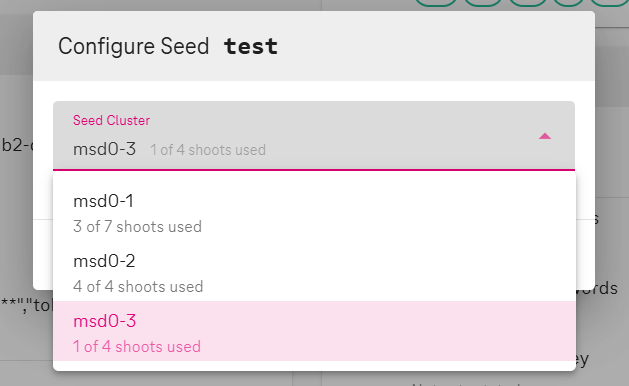
- A modal dialog opens listing available Seeds in a select box.
- Each Seed entry shows a capacity hint.
- Seeds that are at capacity are not valid to select.
- Select a target Seed with available capacity.
-
Confirm the change (click Save in the modal).
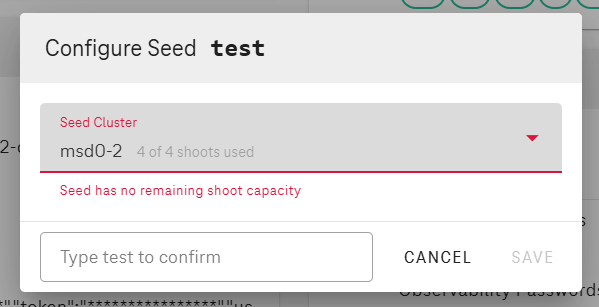
Error shown when the selected Seed has no remaining Shoot slots. 7. The Shoot reconciliation begins.
Related Documentation
- Seed selection during creation: refer to Create & Delete via OSC Dashboard
- Shoot specification fields: Shoot Spec Configuration