Shoot creation
Info
This guide is intended for Project Members who are responsible for creating and managing Shoot clusters. It provides instructions on how to create and delete your first Shoot cluster using the OSC Dashboard.
Prerequisites
Before creating a Shoot, make sure you have:
- Access to the OSC Dashboard
Shoot Creation
-
Log in to the OSC Dashboard.
You can refer to the Accessing your Environment documentation..
-
Navigate to your Project for example
dev.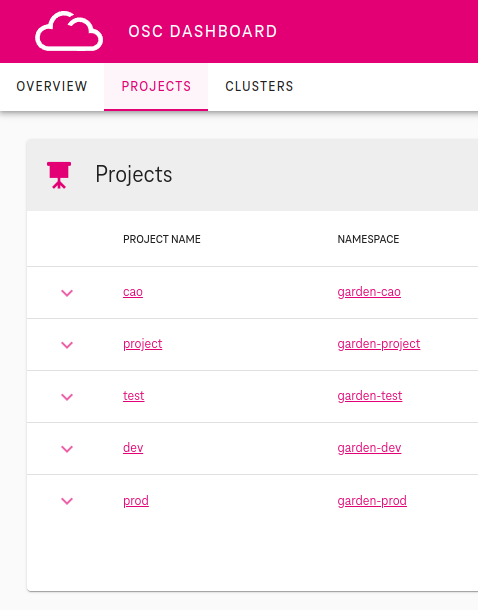
-
Navigate to the Clusters section and click on the
+icon.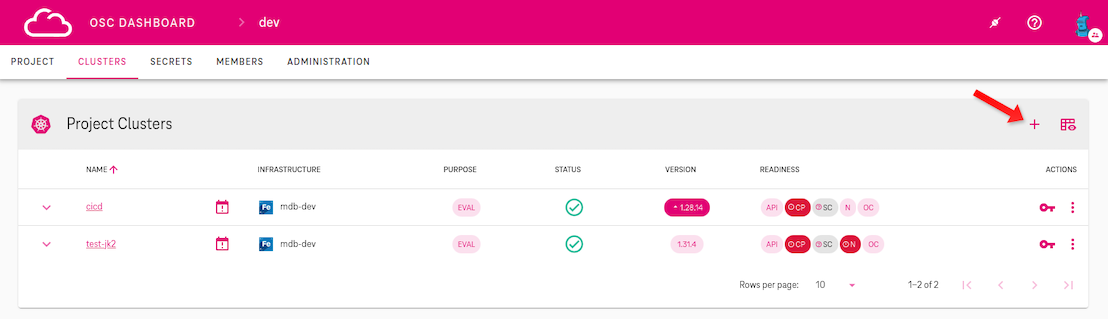
-
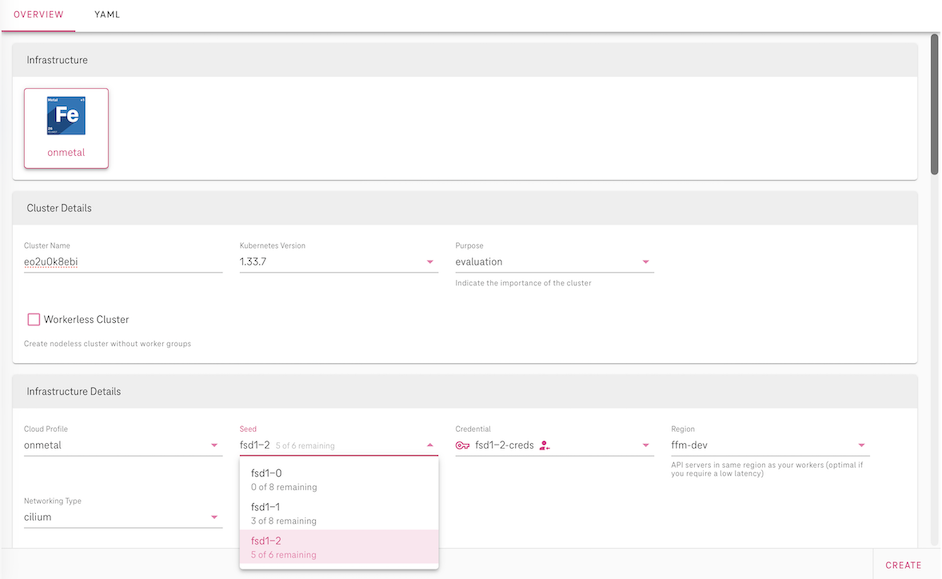
Enter the Cluster settings.
- Cluster Name - Every Shoot needs a unique name inside the project.
- Kubernetes Version - Pick the initial Kubernetes version. You can upgrade later when newer versions become available (downgrades are not supported).
- Purpose - Describes the importance or intended use of the cluster.
-
Seed - Select a Seed. A hint indicating the Seed capacity appears next to each Seed name.
-
Select a machine flavor.
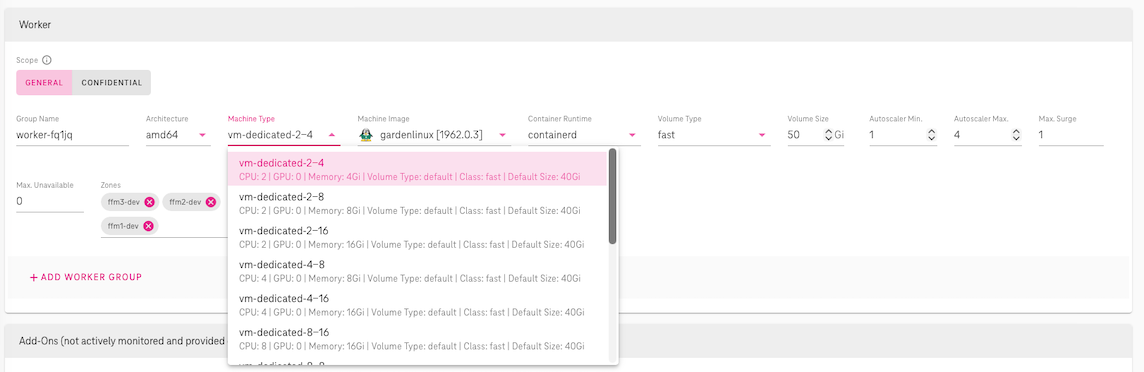
-
At the bottom of the dashboard, click the SAVE button to initiate the deployment of the Shoot cluster.
-
Wait until the Shoot is created.
The creation status is displayed as a spinner icon, showing the overall progress percentage. For more information, you can click the status icon. Shoot creation may take a few minutes. Once the creation is complete, the icon will change to a green check mark.
Accessing the newly created Shoot
In order to access your Shoot cluster, you will need a kubeconfig file. For more information about kubeconfig and how to use it, you can refer to the official documentation.
-
In your project, select the cluster for which you want to download the kubeconfig.
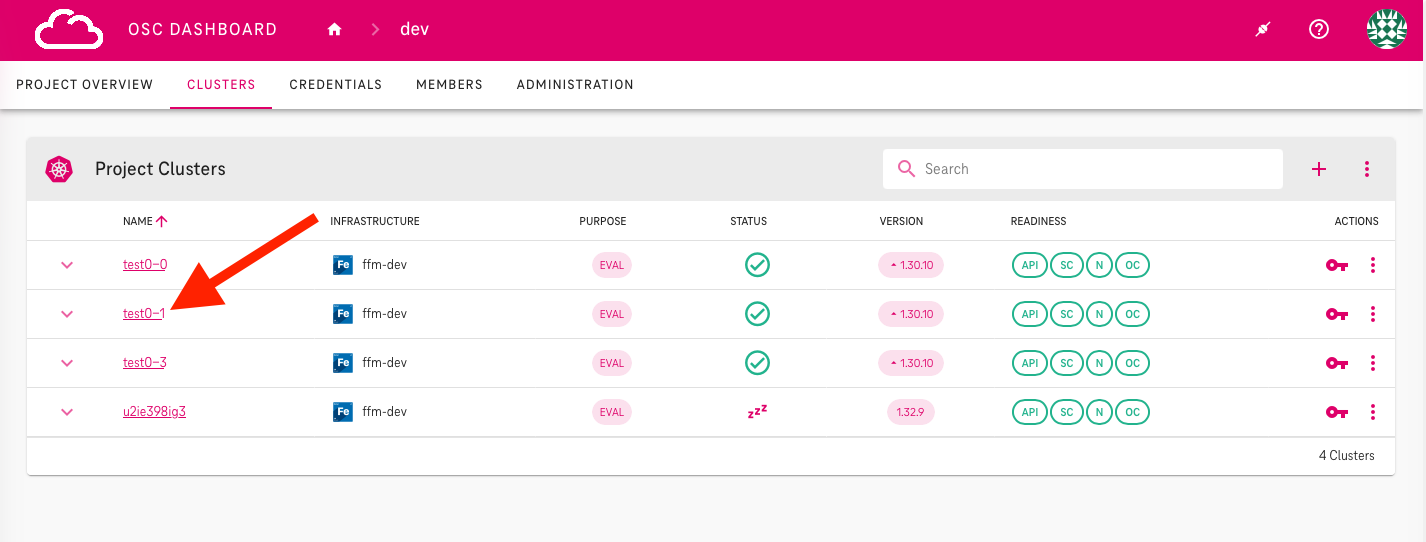
-
Download the kubeconfig file or copy its contents to the clipboard by clicking on the corressponding icon.
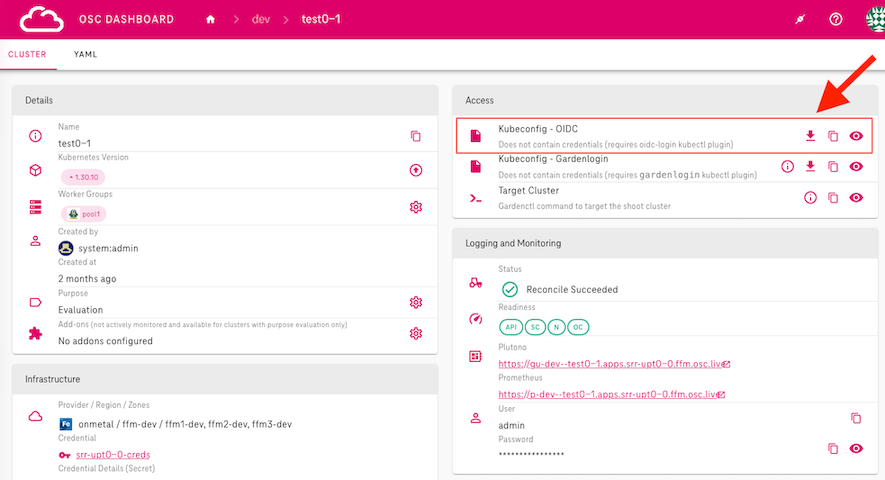
Deleting your Shoot
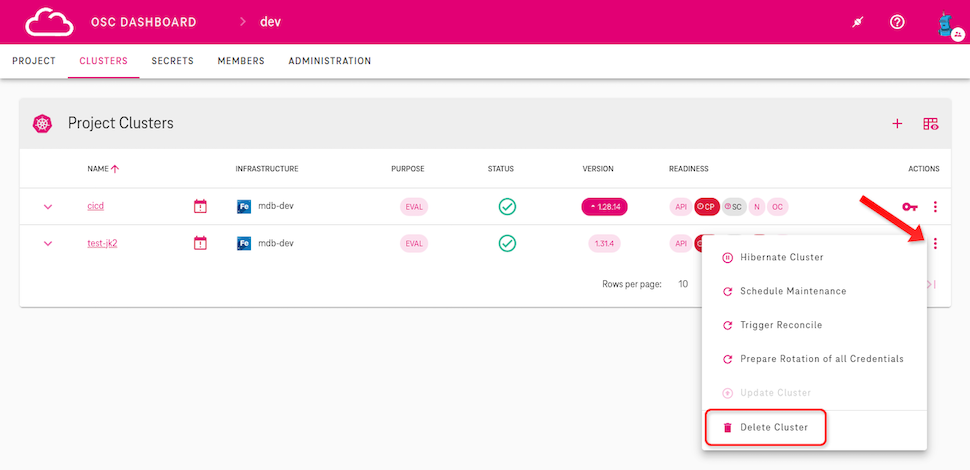
You can delete the Shoot cluster directly from the dashboard in a single step. If your cluster deletion becomes stuck or fails with an error, please refer to OSC for support.
Info
Cluster deletion may take a few minutes. During this time, you will see a spinner icon displaying the progress percentage. If you click the icon, you can view detailed information about each step of the deletion process.
Warning
When you delete a Shoot cluster, please note that all buckets associated with that Shoot will be automatically deleted. If you wish to retain data from the buckets, please follow the procedure outlined in the S3 Extension section of the user documentation.