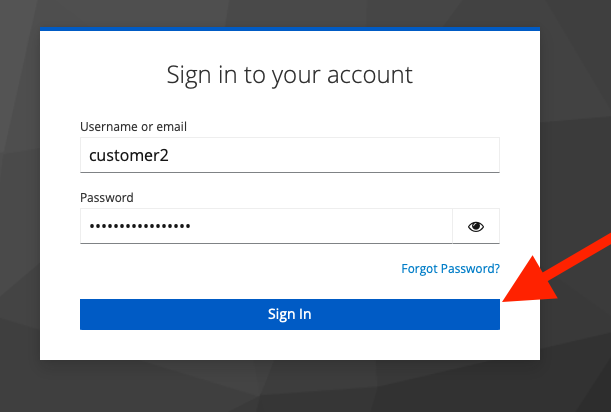
Account activation
Info
This guide is intended for Project Members who have received an account from the Realm Owner. Learn how to activate your account and sign in to the OSC Dashboard for the first time. A link to the OSC Dashboard will be provided by OSC via email.
Info
On your first login, you will be prompted to set your password, configure the Mobile Authenticator, and verify your email address.
To sign in directly to a specific User Management Realm (e.g. FFM-DEV customer), please follow the steps outlined below.
-
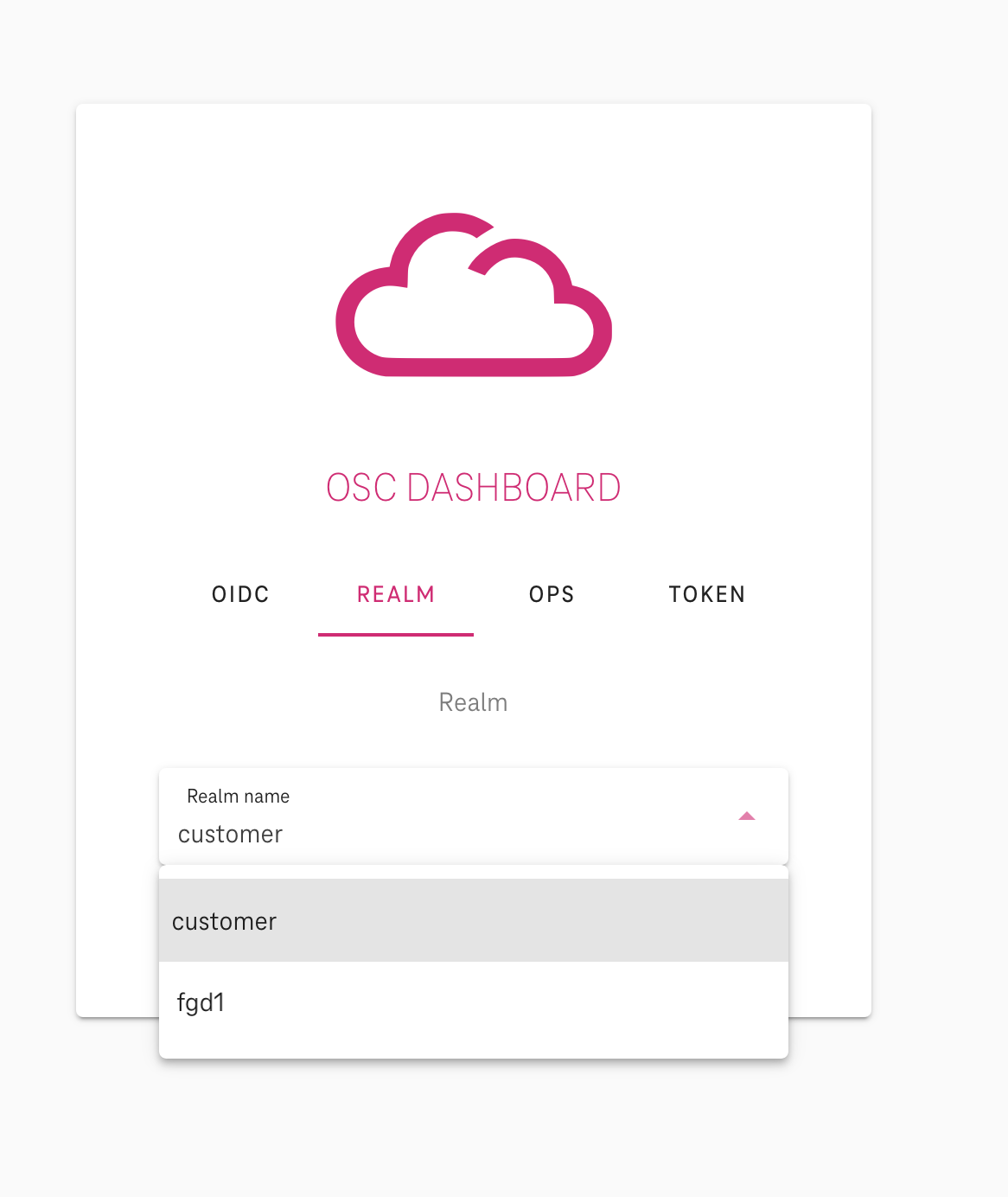
Select the Realm tab.
-
Enter the Realm name, or choose one from the dropdown menu if available.
-
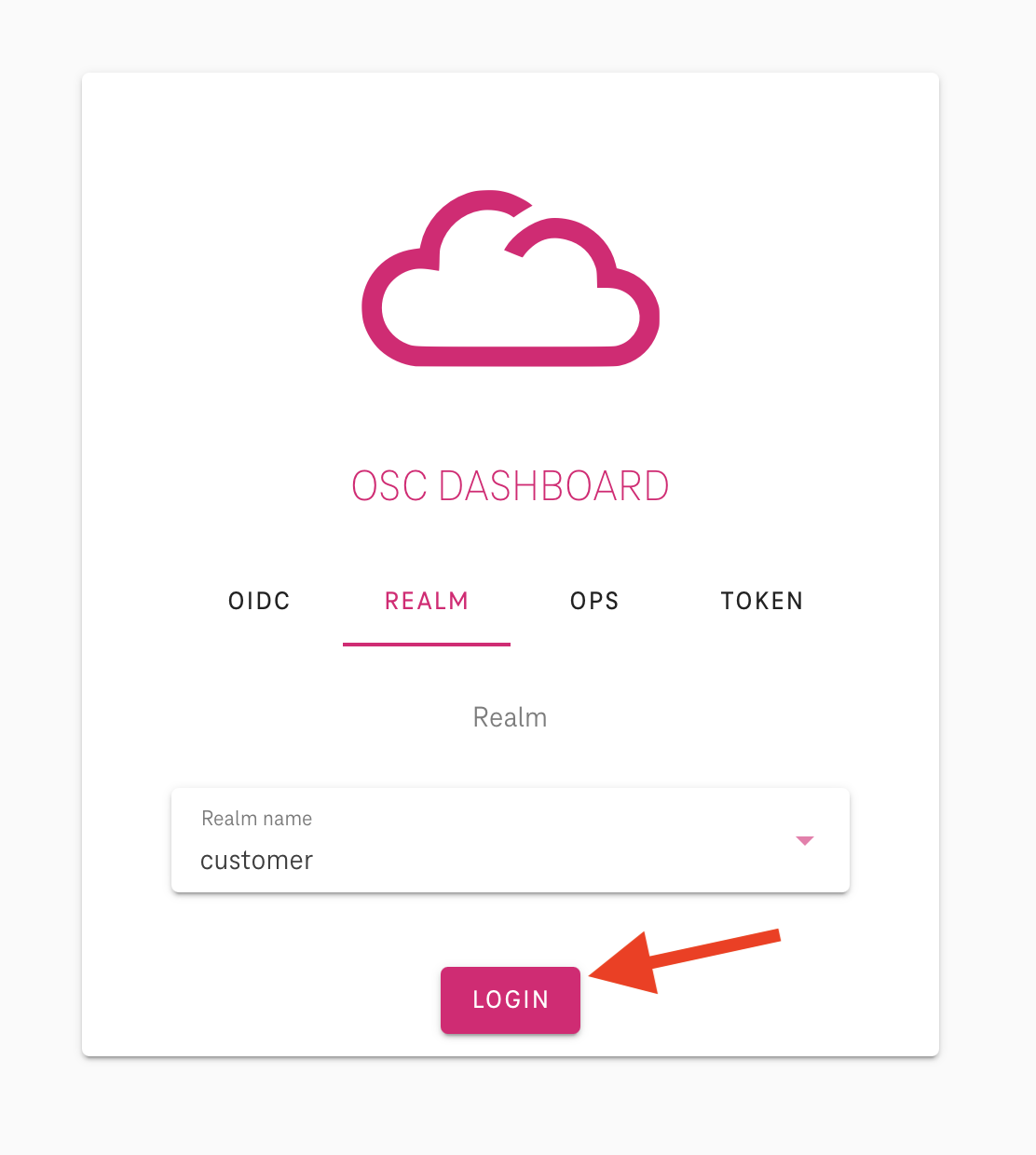
Click the Login button
-
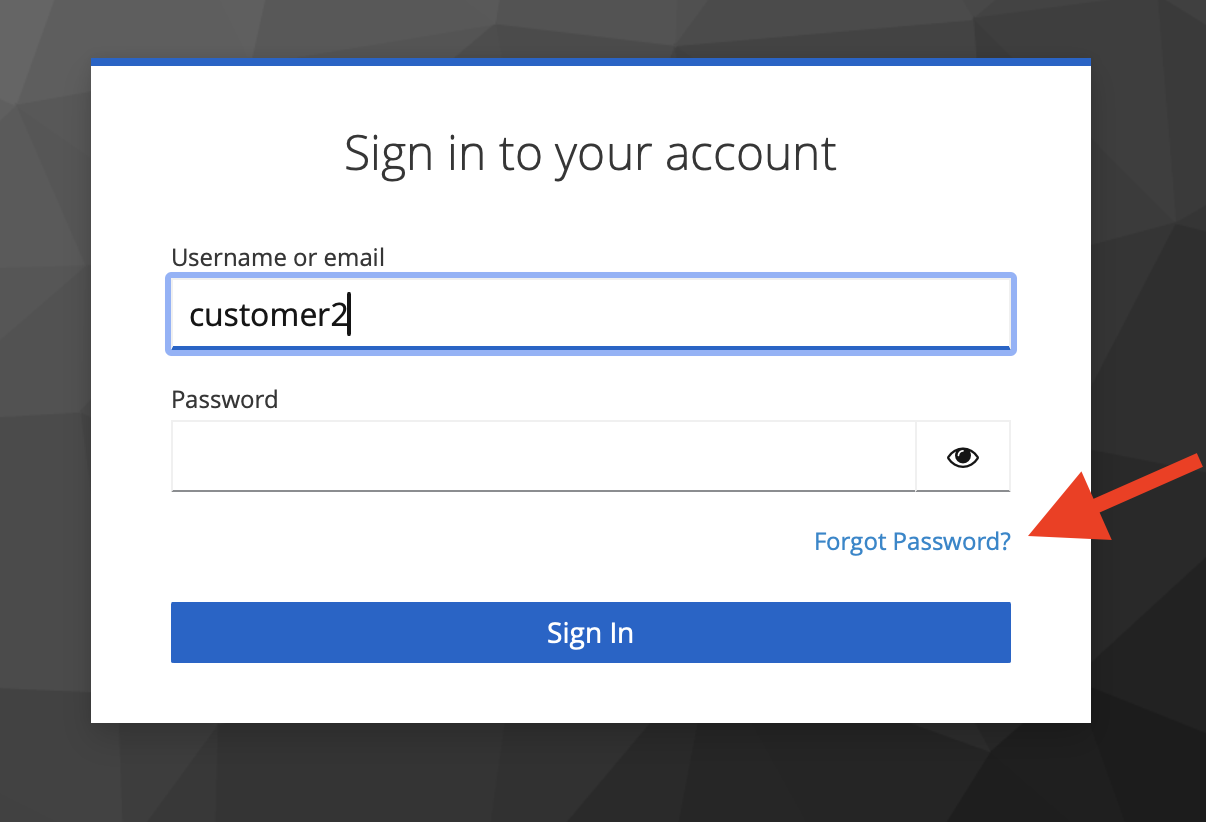
Click forgot password to setup your password.
-
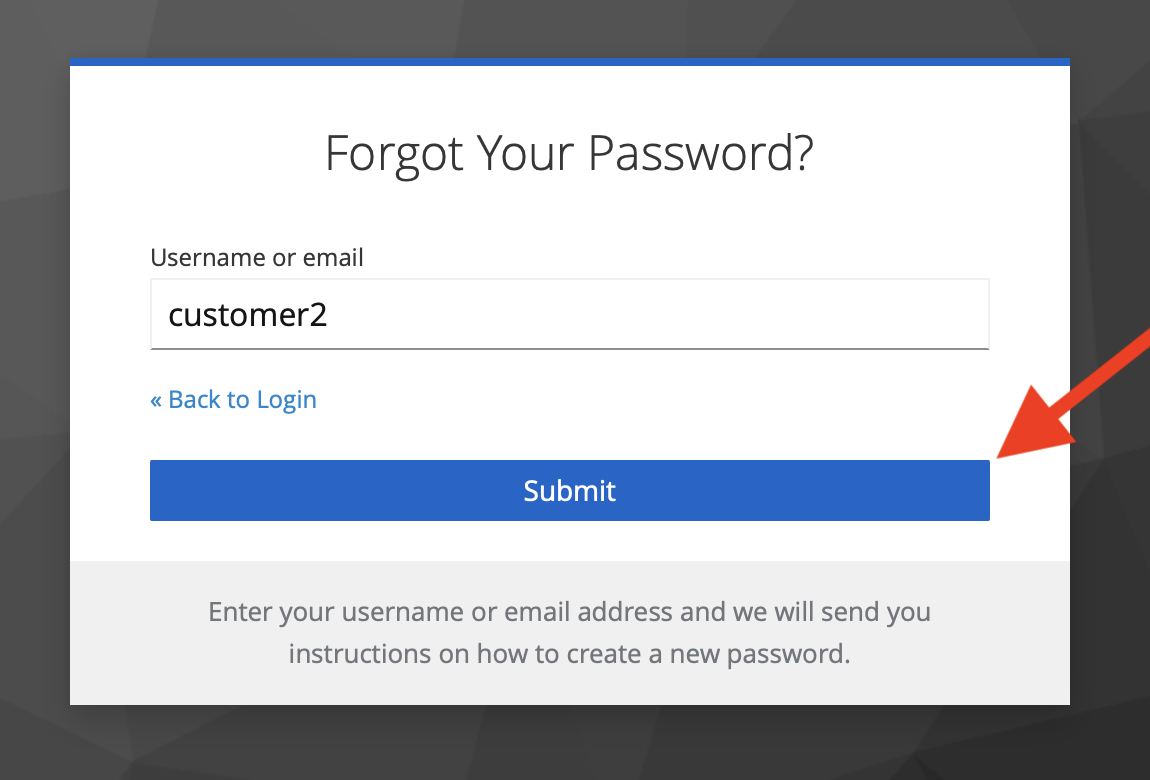
Enter your username and click submit. You will receive an email containing a link to reset your password.
-
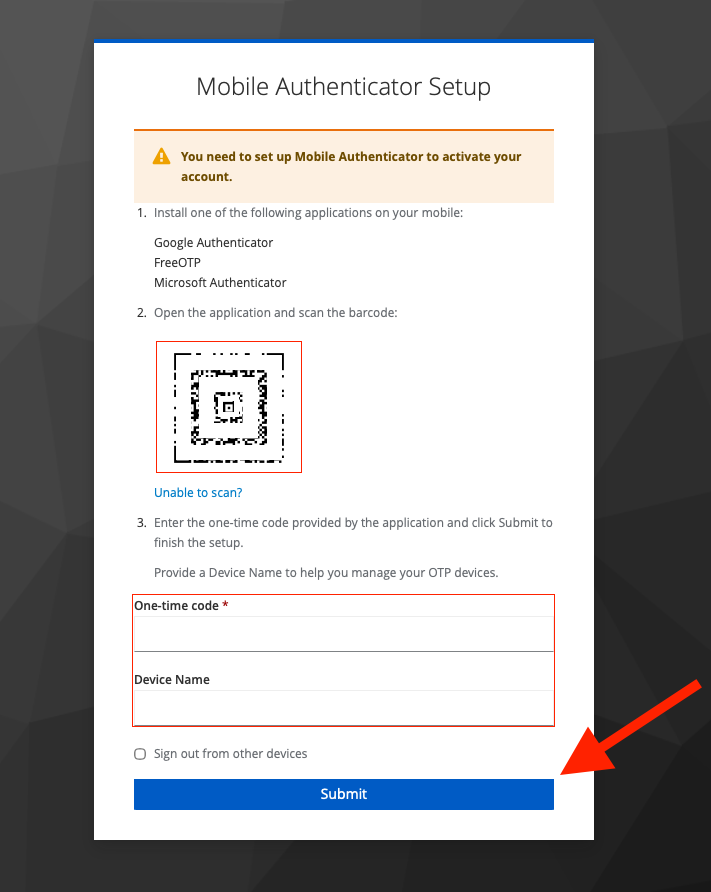
After clicking the reset password link, you will first be prompted to set up the Mobile Authenticator Setup.
-
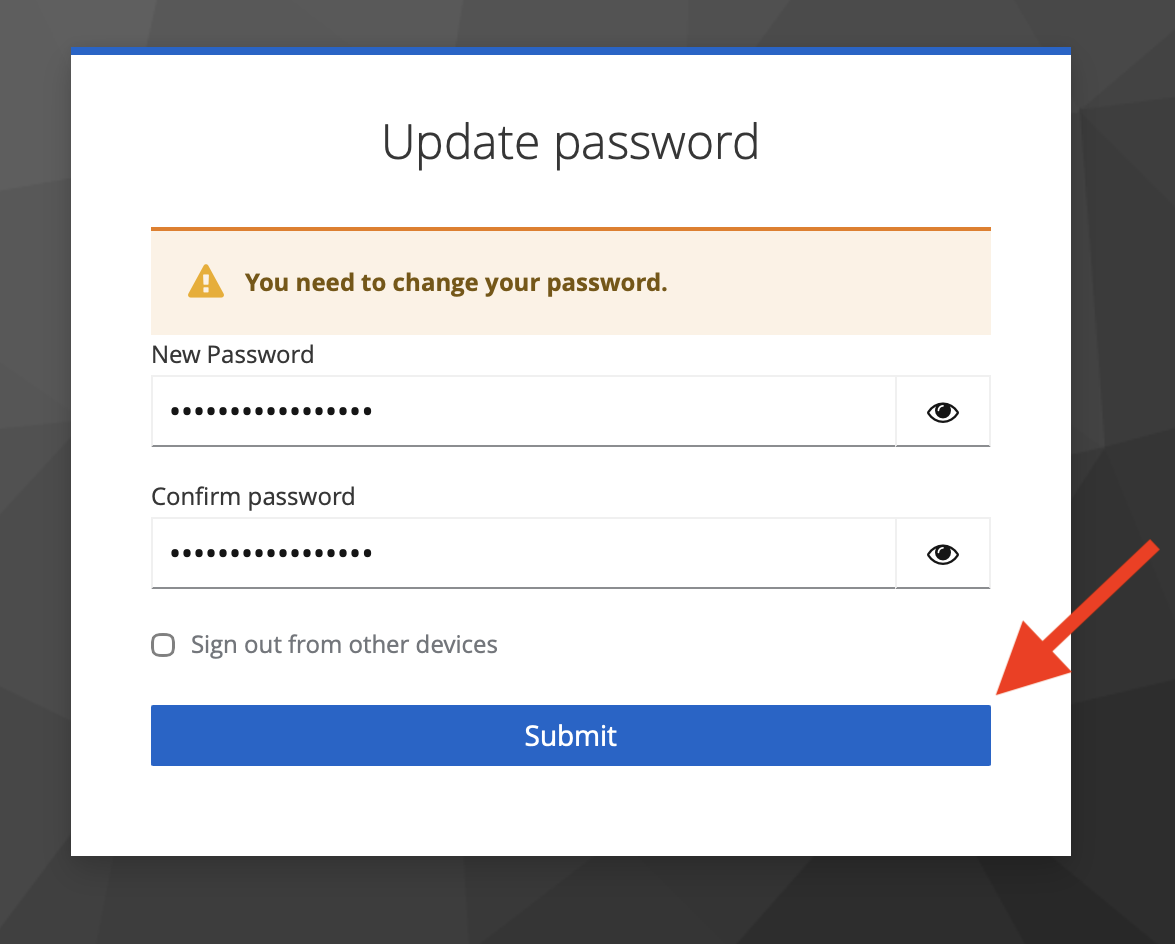
After completing the Mobile Authenticator Setup, you will be asked to setup your initial password.
-
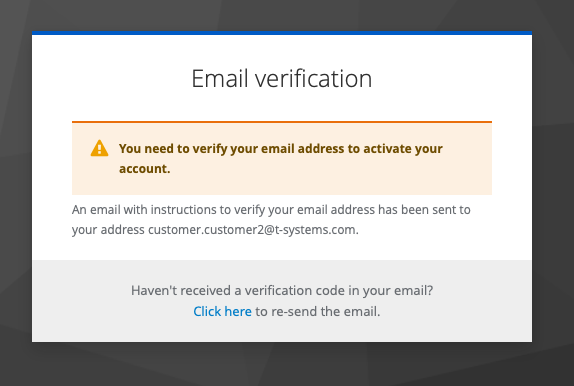
Verify your email.
-
Now you can log in.